Klene: Safe Cleanup for Linux and Windows
Klene helps you scan, preview, and clean common system clutter with a modern GUI and CLI. It started with Arch Linux and now supports provider-based cleanup across Linux distributions and Windows.
Most cleanup scripts run fast and explain little. Klene takes the opposite approach. It checks common cleanup areas, shows you exactly what it found, and waits for your go-ahead before anything is removed. You stay in control the whole way through.
Built by Ben Treder. Source code, install steps, and usage notes are on GitHub.
Where Klene started, and where it is now
Klene started as an Arch Linux cleanup app, and Arch still has the deepest support. Version 0.2.0 expands Klene with safe, provider-based cleanup support for Linux distributions and Windows.
Support depth is not the same on every platform. Arch Linux is the most complete, while other Linux distributions and Windows have working, preview-first cleanup focused on safe, common areas.
What Klene cleans on each platform
Klene uses a provider-based system, so each platform cleans the areas that make sense for it. Here is what is covered today.
Arch Linux and Arch-like systems
Full support. pacman cache, orphan packages, system journal, trash, thumbnails, low-risk user cache, AUR cache, and Flatpak.
Debian, Ubuntu, Linux Mint
Working support. APT cache, APT autoremove, trash, thumbnails, low-risk user cache, system journal, Flatpak, and optional Snap cache where available.
Fedora
Working support. DNF cache, DNF autoremove, trash, thumbnails, low-risk user cache, system journal, and Flatpak.
openSUSE
Working support. zypper cache, trash, thumbnails, low-risk user cache, system journal, and Flatpak.
Generic Linux
Working basic support. trash, thumbnails, allowlisted user cache folders, system journal when available, and Flatpak when available.
Windows
Working safe cleanup support. user temp files, Windows temp files, Recycle Bin, thumbnail and icon cache, and Windows error reports.
Built so nothing is removed by surprise
Cleanup tools touch real files, so Klene is careful by default. The whole flow is designed to keep you informed and in control.
Preview-first workflow
Klene shows you what it found and what would be removed before any cleanup runs. You review first, then decide.
Dry-run friendly CLI
The command-line tool is built for safe inspection, so you can check what Klene would do before you let it do anything.
No automatic cleanup
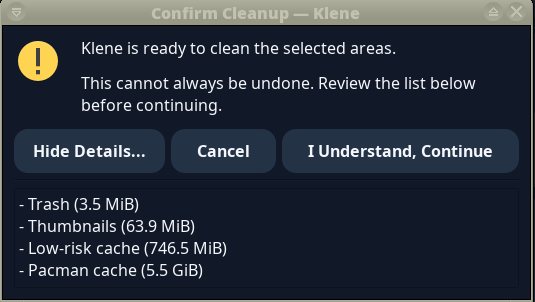
Nothing is cleaned without your confirmation. Klene never removes files on its own behind the scenes.
Orphan packages need extra care
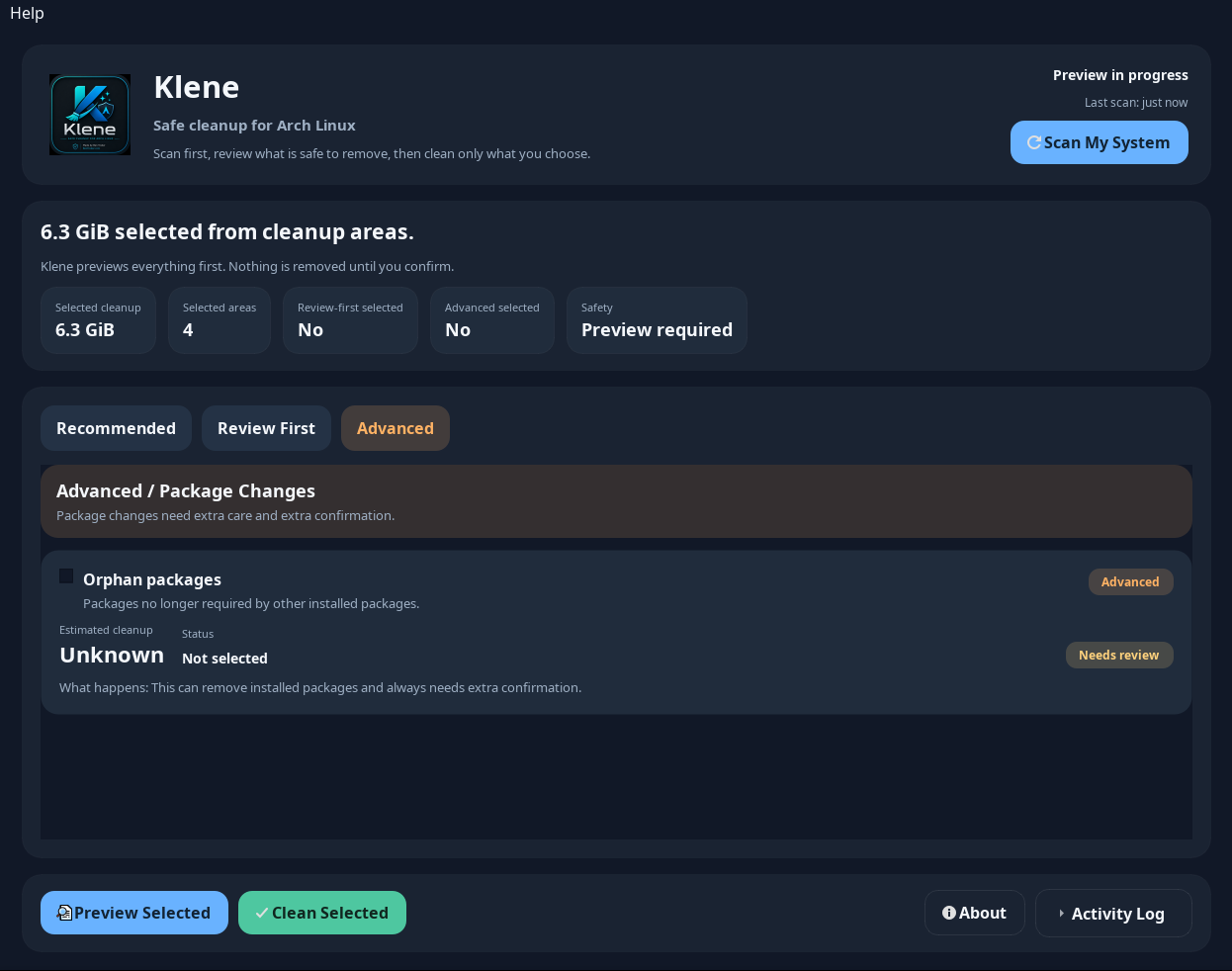
Orphan package cleanup asks for an extra confirmation, since removing packages deserves a second look.
Avoids dangerous paths
Klene focuses on known, low-risk cleanup areas and stays away from paths that should not be touched.
Clear home paths
User-home locations are shown cleanly as ~/... in the GUI, so it is easy to see what is being cleaned.
What Klene does not touch
To stay safe and predictable, Klene leaves these alone:
- Registry cleanup
- Browser passwords, cookies, saved sessions, or profiles
- Whole home directories
- Whole AppData folders
- Arbitrary unknown paths
- Risky system roots
- Package removal without preview and extra confirmation
Use the GUI or the CLI
Klene works two ways. Use the modern GUI for a guided, click-through cleanup, or the CLI when you want command-line control.
- Launch: Open Klene to get started with the modern GUI.
- Platform: Confirm the platform Klene detected, so it uses the right cleanup areas.
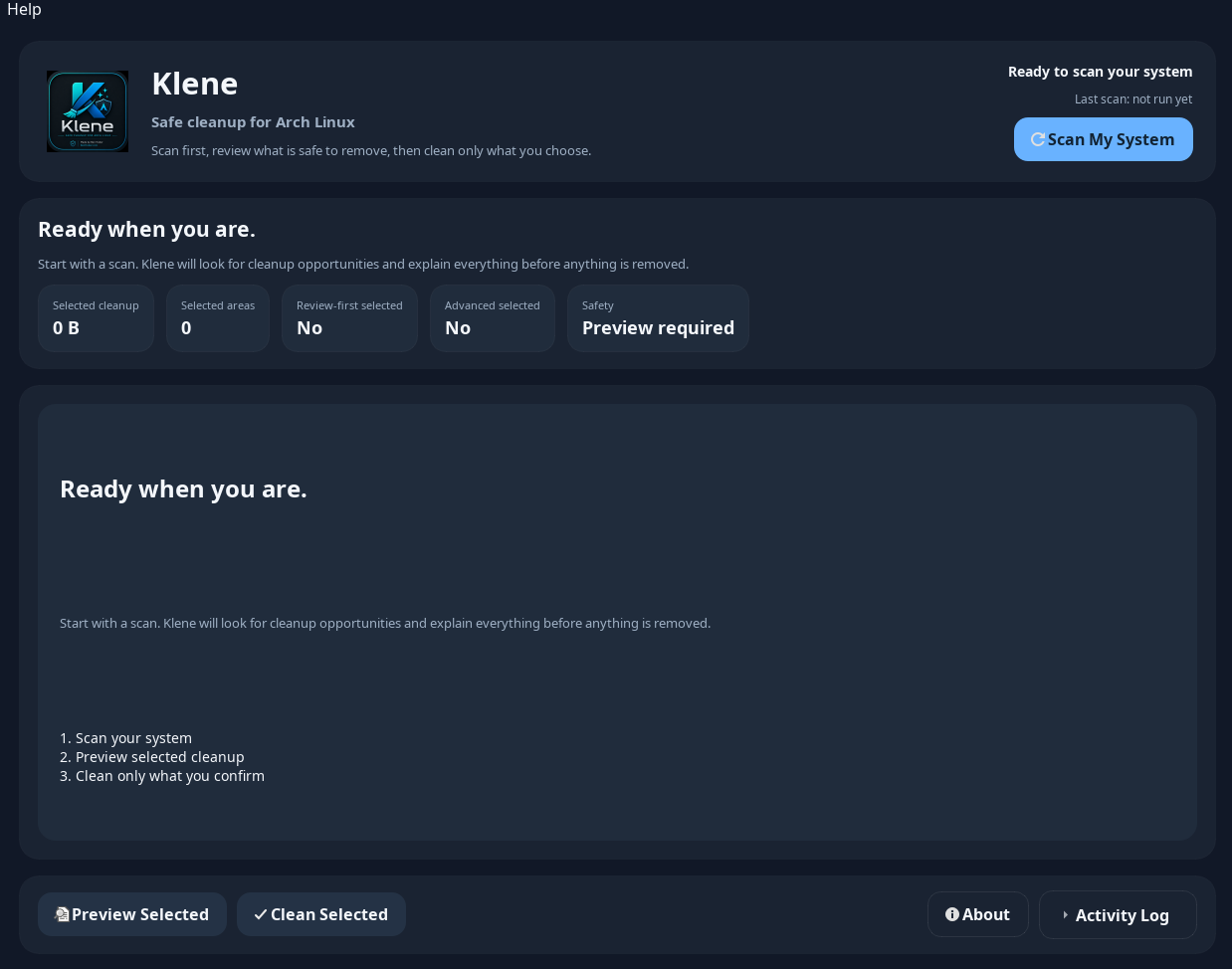
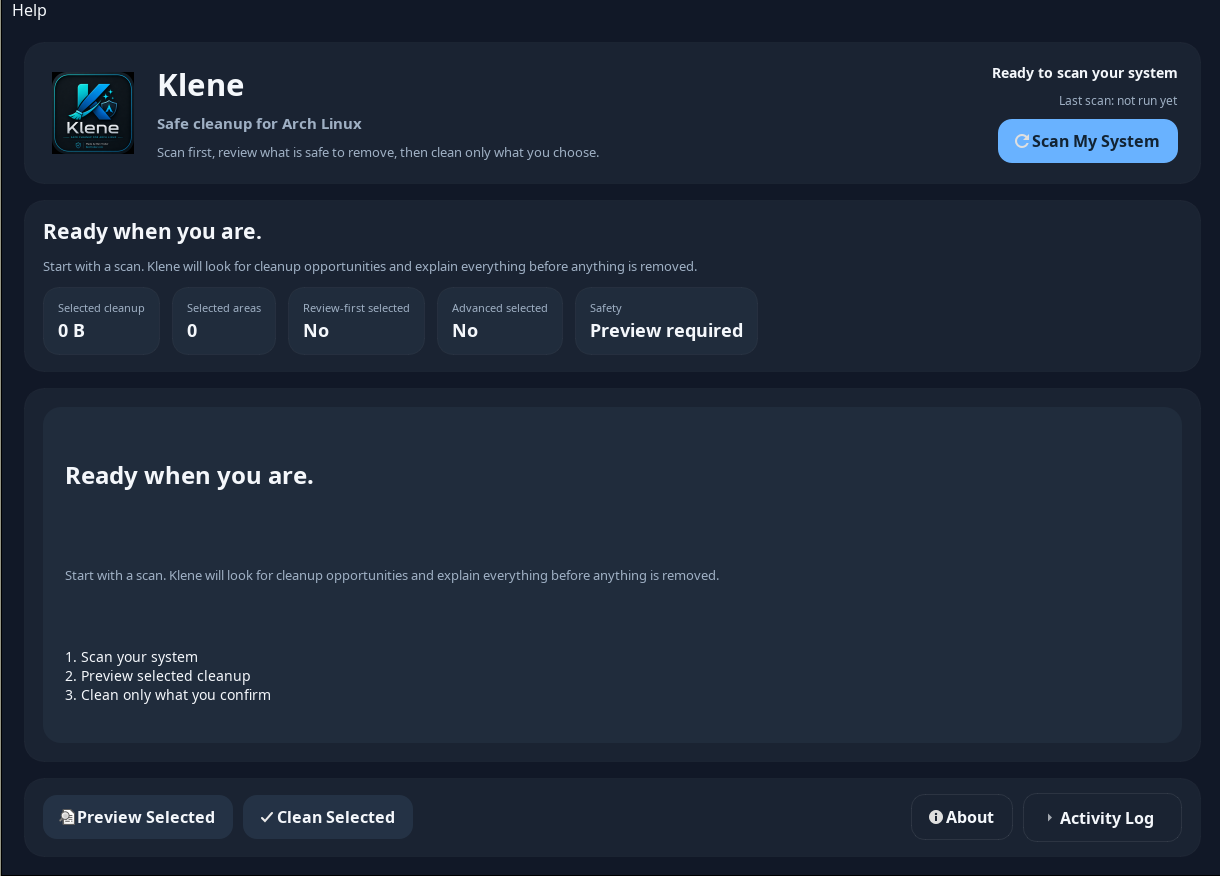
- Scan: Scan your system so Klene can check the common cleanup areas.
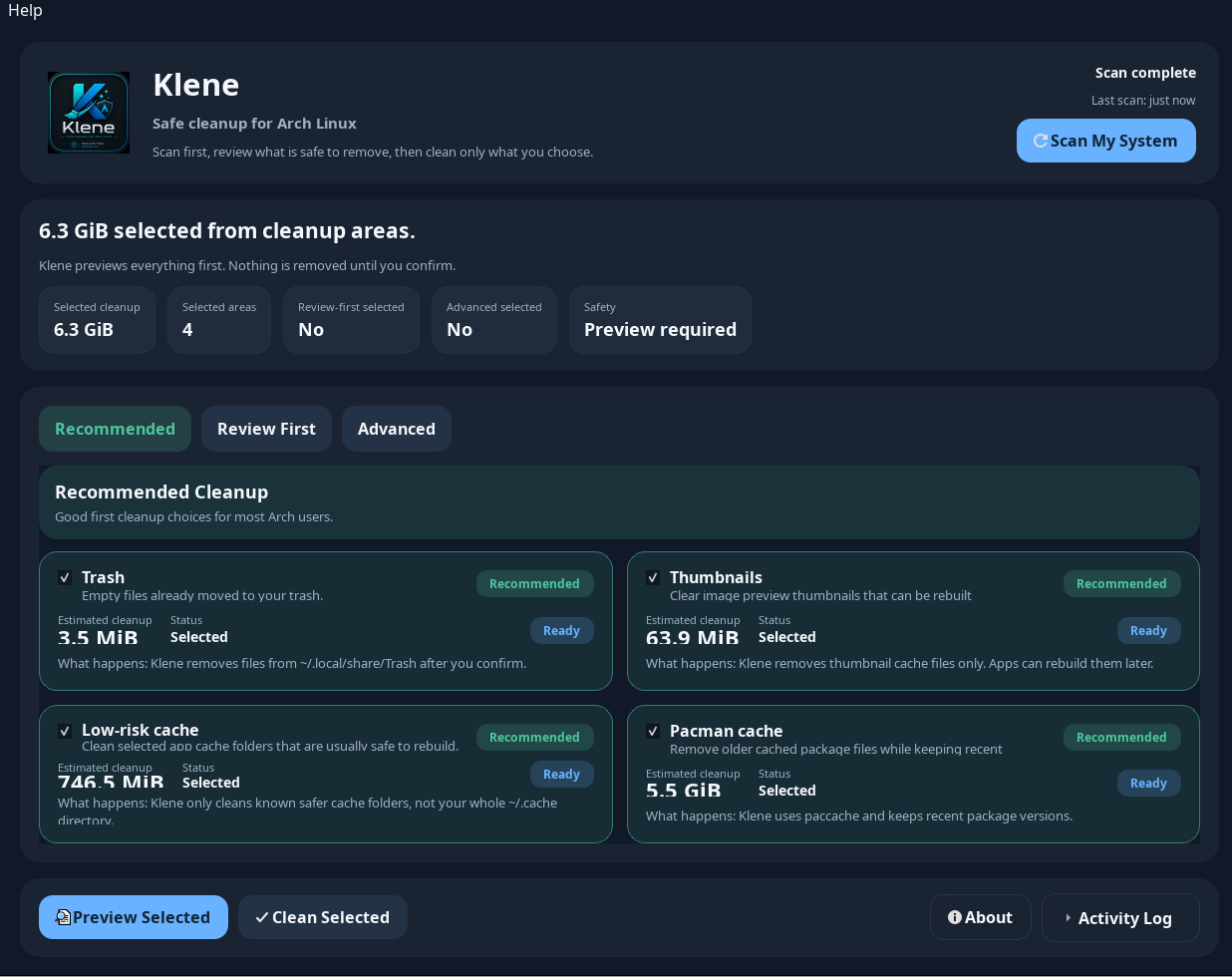
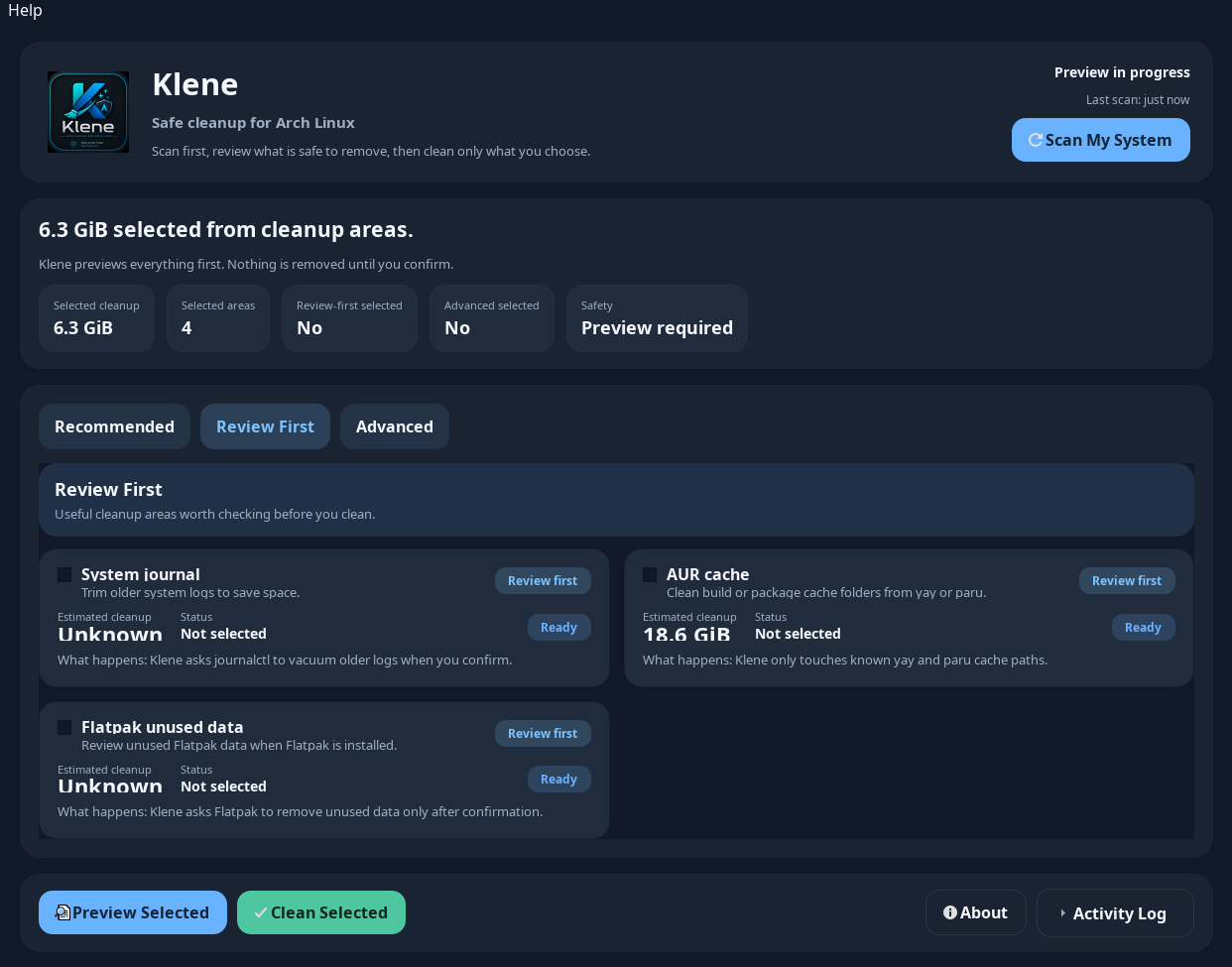
- Review: Review the recommended, review-first, and advanced cleanup areas Klene found.
- Preview: Preview the selected cleanup to see exactly what would be removed.
- Clean: Clean only after confirmation, and only the items you chose are removed.
CLI examples
Prefer the terminal? The CLI covers platform detection, scanning, health checks, and project info.
Developers can also run Klene from source with Python. The GitHub repository has the full setup steps.
A look at the Klene GUI
A quick tour of the dashboard, recommended cleanup, review steps, preview, and the confirmation prompt. More images are on the way.
Who Klene is for
Klene is a good fit if you want cleanup help that stays clear and careful.
- Linux and Windows users
- Arch Linux users who want the deepest cleanup support
- People who want cleanup help without risky commands
- Users who want a GUI for common cleanup tasks
- Users who still like CLI control
- People who want to understand what is being cleaned before doing it
Why I built this
Keeping an Arch Linux system tidy usually means remembering a handful of cleanup commands and hoping you got the paths right. Klene started as a way to make that easier and safer on Arch. With version 0.2.0, the same preview-first, confirmation-based approach now extends to more Linux distributions and Windows. The preview step and the confirmation prompts are there because I wanted a cleanup tool I could use without second-guessing what it was about to remove.
Related tools
Klene is one of a few local, preview-first tools built the same way.
Get Klene on GitHub.
Klene is open source and available on GitHub. The full source code, install instructions, and usage notes are all in the repository.